
If you want to create a Team Based Learning activity, an important aspect to keep in mind is the fact that our TBL- tool only facilitates two steps of the Team Based Learning method, that being the iRAT and the tRAT.
Please note: For this tool it is of great importance to add the teams within the assignment. Please navigate to the end of this article to see how they can be added.
Title
After selecting the TBL tool, you will be presented with a screen similar to the following:
Here it is important to start by adding a title to the activity (where it now says 'Team Based Learning name'). After adding the title to your activity, you can continue to the first step, where you can start to add questions to the quiz.
Instructions
Note: If you would prefer to add instructions to the activity, scroll down to the bottom of the page, where you will be able to find a green '+' button. By clicking this, you will be presented with the following option to add instructions.
After selecting this, the first step of the activity will be the instructions. Here, you can add the desired instructions to provide students with guidance on what is expected from them while completing this activity.
Individual Readiness Assessment Test
Depending on whether instructions have been added, the first or second step of the activity will be the Individual Readiness Assessment Test (iRAT). Within this step, you will have the option to add the questions you would like the students to answer.
Simply click 'Start creating questions' and you will be able to start adding the questions. Here you will find that it is only possible to add multiple choice questions, given that this is in line with the TBL method.
When creating the questions, simply add the question and all respective answer choices. Then select which of the answers is the correct one.
Once the question has been saved, you will be prompted with the following screen:
Team Readiness Assessment Test
Continue to add all desired questions to complete the iRAT. Once all questions have been created, they will be automatically added to the Team Readiness Assessment Test (tRAT) step, given that the student will be asked to answer the same set of questions here.
During the iRAT step, all students will be asked to answer the questions, after which the correct answer will not be revealed to them. During the tRAT step, all added questions will automatically be in 'scratch-off mode', meaning that the students will be shown whether the answer was correct or not, and in case the question was answered incorrectly, they will be provided with another opportunity to answer the question. This process continues until the correct answer was chosen.
Scratch Off-Mode
When Scratch-off questions mode is enabled, multiple choice questions reveal only whether the selected answers is correct after submitting. This is also known as the Immediate Feedback Assessment Technique (IF-AT), which is fundamental to the Team Based Learning pedagogy.
How to Enable Scratch Off Mode
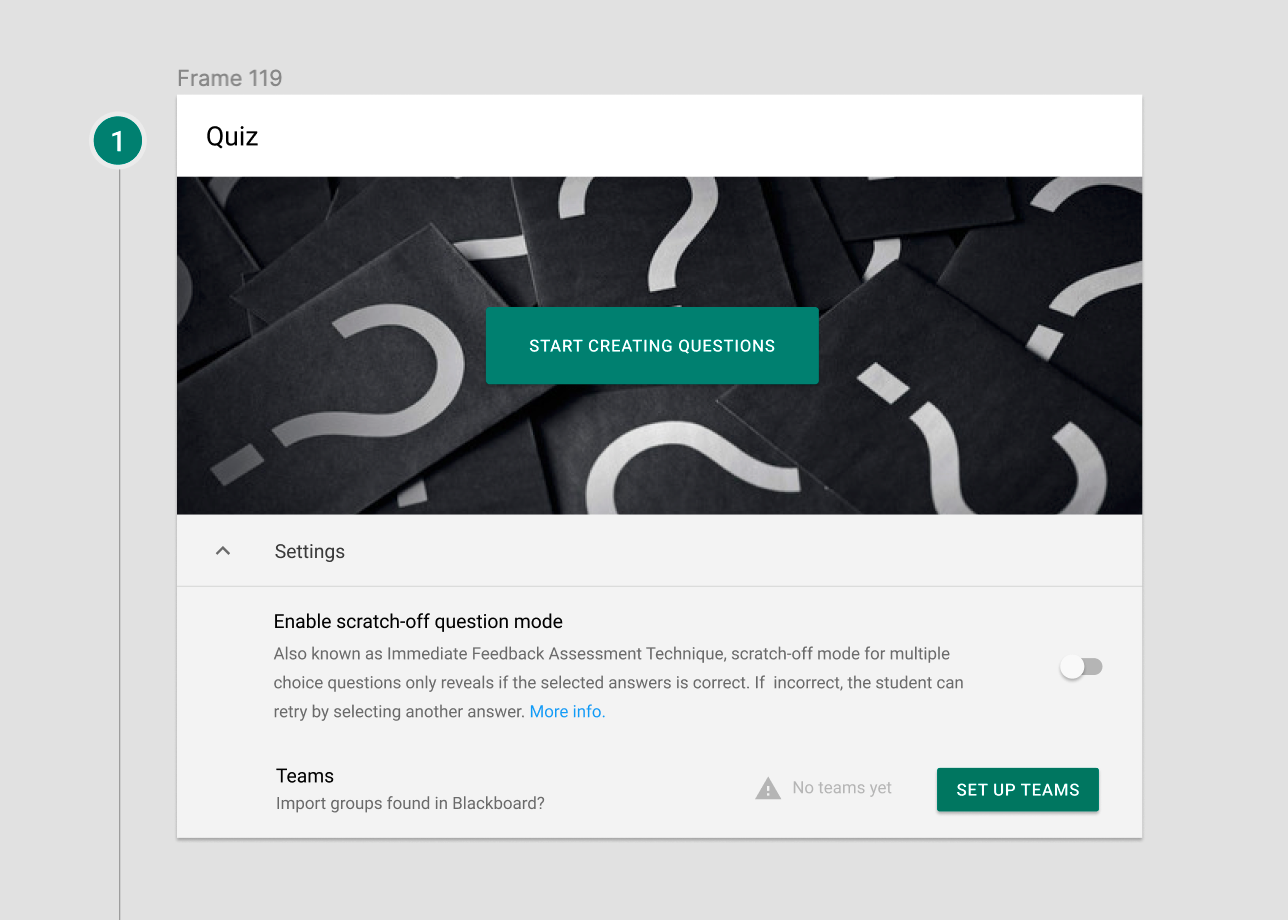
Image showing scratch off question mode toggle within the quiz set up screen.
This option is available on any quiz module. When enabled, it applies the scratch-off question mode for all multiple choice questions. Note that this mode isn't available for open-questions, and hence can't be enabled when the quiz contains open questions.
The Pedagogy of Scratch-Off Mode.
If the selected answer was incorrect, this is revealed to the student, but the other answers remain veiled. This gives the student limited information that challenges them to carefully identify the false assumptions in their previous decision-making. The student can retry by selecting another answer, but has lost half of the points. When correct they can still save the remaining 50% of the score that's available. But if they miss again, they lose again half of the available score. This halving of the reward continues until the student has exhausted the options. For the last remaining answer no grade is rewarded considering this is no better than guesswork. This grading mode is known decremental scoring, and is integral to scratch-off questions.
Decremental scoring provides an incentive structure that drives students to be careful and deliberate in their judgement skills, while also incentivising continued engagement after initial failure. This is an advantage over the traditional multiple choice question mode, where the student has no incentive to engage after failure. It's a missed learning opportunity for students when they simply neglect to engage by moving to the next question without further consideration. Decremental scoring rewards the opposite, and by doing so promotes the skill of learning from failure and an attitude of willingness to change one's mind based on new evidence. Skills that are critical to train for employment in today's fast-paced job market and information economy.
Benefits When Applied in Team Based Learning
Answering questions in teams brings valuable social dynamics. In regular multiple-choice settings, a dominant member often drives decisions, sidelining quieter members and their insights. This limits the team’s full expertise. Enabling scratch-off mode turns initial failures into chances to rethink the process, encouraging quieter members to share their ideas. Dominant members learn to listen more and facilitate group input, while introverted members gain confidence to contribute.
When team members are emotionally attached to beliefs, IF-AT helps them practice changing views based on new evidence. This reduces confrontation and encourages open discussion. In Team Based Learning (TBL), this fosters teams where being right matters more than being polite. Over 20 years, Michaelsen (1989) found that 99.95% of TBL teams outperformed their best member by 14% on average.
FeedbackFruits values flexible mindsets, like changing opinions with new evidence, as vital for healthy democracy. Our focus on critical thinking drives our investment in Team Based Learning and the inclusion of Scratch-off questions across our tools.
Good to Know
-
It's only possible to toggle scratch-off mode on or off when there are no open ended questions and no student has started the quiz yet. Once a student has participated, the mode is locked to what it was when the student engaged with the assignment.
Adding Teams
Since the tRAT step is to be completed in teams, here it is of importance to add the desired teams. By clicking on select groups under Student collaboration you will be able to either manually add the desired teams, or if a proper integration is in place with your Learning Management System (such as Canvas, Blackboard, Brightspace, Moodle), you will be able to select the teams as created within the LMS-course.
Grading
If you would like to add a grading aspect to this activity, you can do so by clicking the green "+" button at the bottom of the activity, after which you can select the grading module. Once the module has been added, please configure the percentages in terms of how much the iRAT scores and the tRAT scores are to count towards the grade. Note: Make sure the total amounts to 100%
Once all questions and teams have been added, you've completed setting up the assignment. Make sure to press 'save' in the upper right corner (and follow the proper steps to save the assignment if you are adding the activity in an LMS), and you're done.